Checklist Template
Use Case:
Checklist Templates are used to add Checklists to your audit file. You can then use these Checklists from your created Checklist Template when conducting audits.
Let’s see how you can create your Checklist Templates
Create Checklist Template
Step 1: Fill out Basic Info
Note:
- The Title should be unique to ensure proper identification of the Checklist template.
- If "Is the checklist applicable only to specific clients?" is ticked, then the Associated Clients table cannot be empty.
- If "Enable" is checked, the Audit Type field becomes mandatory.
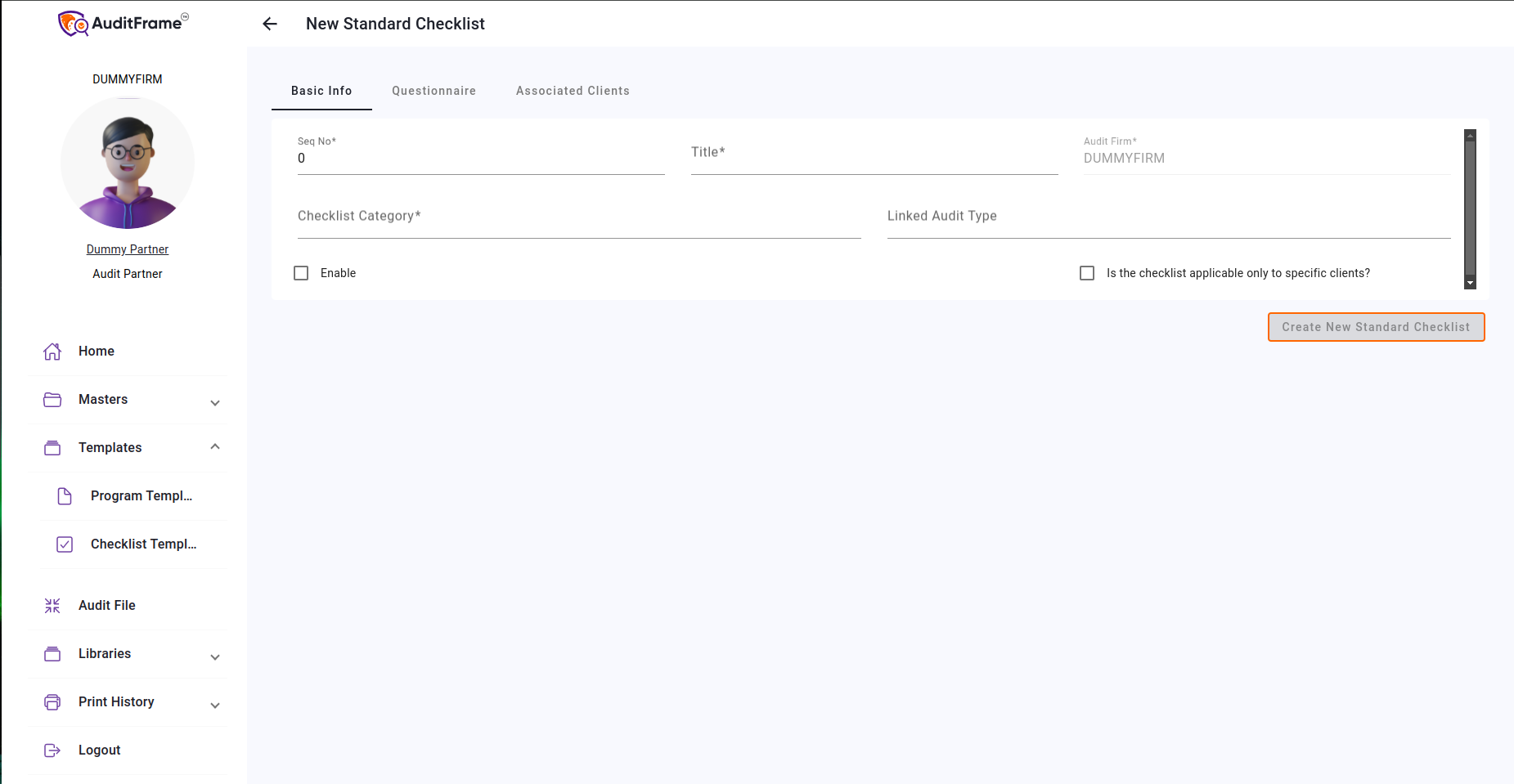
Basic Info Permissions
| Feature / Field | Audit Manager | Audit Partner | Audit Staff | Notes |
|---|---|---|---|---|
| Enable Checkbox | Enabled | Enabled | Disabled | |
| Is Checklist Applicable To Specific Clients? Checkbox | Enabled | Enabled | Disabled |
Step 2: Add Questionnaire
Note: At least one Questionnaire must be added to the Checklist Template for it to be valid. This ensures that the checklist contains relevant questions for the audit.
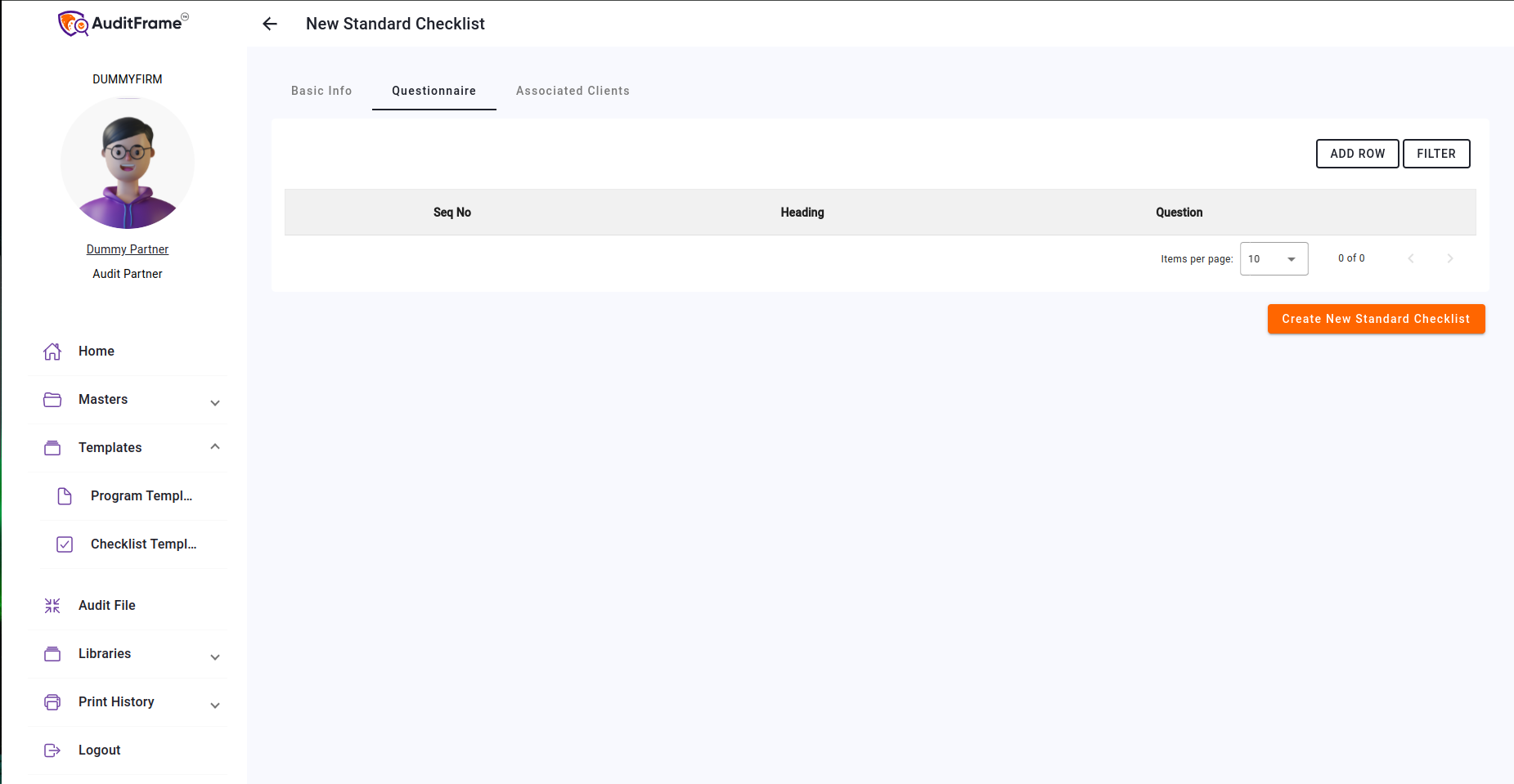
Questionnaire Permissions
| Feature / Field | Audit Manager | Audit Partner | Audit Staff | Notes |
|---|---|---|---|---|
| Questionniare Add Button | Visible | Visible | Hidden | |
| Seq No Edit Popup | Visible | Visible | Hidden | |
| Heading Edit Popup | Visible | Visible | Hidden | |
| Question Edit Popup | Visible | Visible | Hidden | |
| Questionnaire Edit Button | Visible | Visible | Hidden | |
| Questionnaire Delete Button | Visible | Visible | Hidden |
Step 3: Associated Clients
Note: If you have ticked "Is the checklist applicable only to specific clients?", then at least one Associated Client must be added to the Checklist Template.
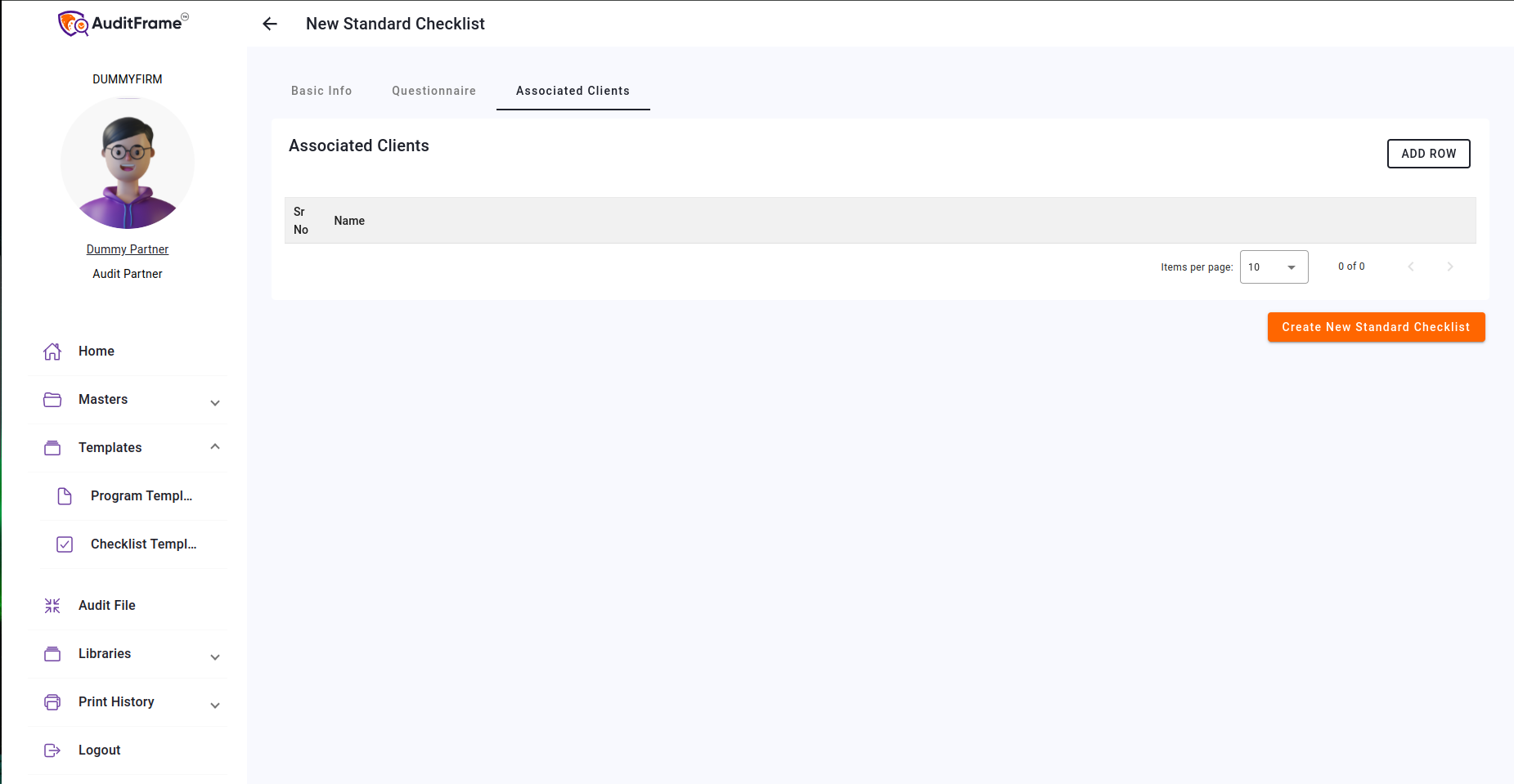
Associated Clients Permissions
| Feature / Field | Audit Manager | Audit Partner | Audit Staff | Notes |
|---|---|---|---|---|
| Associated Clients Add Button | Visible | Visible | Hidden | |
| Associated Clients Edit Button | Visible | Visible | Hidden | |
| Associated Clients Delete Button | Visible | Visible | Hidden |
AI Curator
In this user can generate Questionnaire using ai just copy prompt and past it in claude.ai and paste received response in chat response below and click proceed response it will auto populate table with the response.
Note: Table needs to be empty add using prompt.

Button and it's Purpose
| Button | Purpose |
|---|---|
| Duplicate | Create New Template with Audit Program of Current Template |
Error You May Get
| Error Message | Remedial Action |
|---|---|
| If restrict client is checked then Associated Client Table Cannot be Empty | Add at least one associated client in the Associated Client Table if "restrict client" is checked. |
| Audit Area should exist if Checklist is enabled | Ensure an Audit Area is selected when enabling the Checklist. |
| Only enabled Linked Audit Area allowed [should throw this error = 'Audit Area Should Exist if checklist is enabled'] | Select an enabled Audit Area when enabling the Checklist. |
| Checklist Question Template should be unique for an Audit Firm. | Ensure the Checklist Question Template is unique for each Audit Firm. |
Global Actions & Template Operations
Permissions regarding the overall management of the Standard Checklist Template.
Note: System Defined Documents Cannot be Deleted.
| Feature / Field | Audit Manager | Audit Partner | Audit Staff | Notes |
|---|---|---|---|---|
| Standard Checklist Template Delete Button | Visible | Visible | Hidden | |
| Standard Checklist Template Save Button | Visible | Visible | Hidden |